Showing posts with label Presets. Show all posts

20090402

LR Preset: Holga+Classic Film

LR Preset: Holga Effect

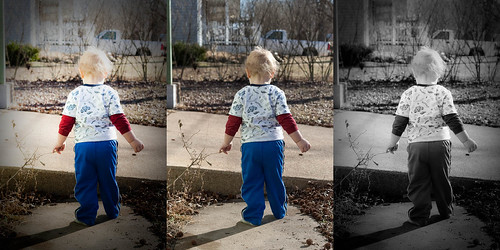
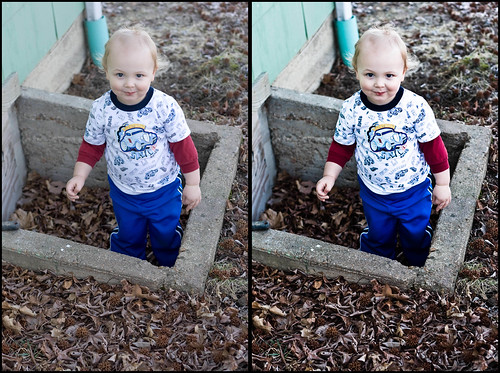
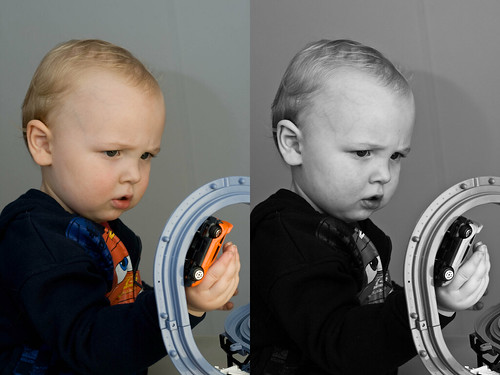
Today, in association with X=blog, LifeInDigitalFilm presents two film emulation presets featuring my new Holga effect. Today's download consists of my Kodak Kodachrome 25 and Kodak Panatomic X presets with the new Holga effect built right in.

When using these presets on normal dSLR images, without cropping, these presets are ready to rock. If you want the classic square cropping of a Holga with 120 film, simply change the Post-Crop Vignette Roundness from +33 to 0.

If you want to get the Holga effect in a preset of its own, hop over to X=blog. Brandon's site is the exclusive home to my Holga-effect preset. It is ready to stack ontop of any of my presets, or any other preset you want a Holga-look applied to. Refer to yesterday's tutorial on modifying presets to combine the Holga effect with any other preset into a brand new preset.

Currently the Holga effect and Holga-treated presets are only available for Lightroom. I am working on a method by which to use them in ACR, and will update when available. For now, enjoy with Lightroom.

[NOTE: I figured out a work-around to use the Holga Base preset in ACR. It is live over at X=blog. I am not going to release the Holga+Film presets for ACR due to the extra step involved to complete the effect. If you want Holga+Film effects in ACR, grad the Holga set at X=, follow the install instructions. Then get the desired film presets here and install. In ACR apply athe film preset first, then the Holga BAse, finally goto the Graduated Filter menu and add the Holga Base Gradient. This will stack the Holga Effect over the desire film preset.]


Until later,
Michael

20090320

Tutorial: Presets, In Depth - Part One: Installing and Reading Presets

Again, apologies to my regular visitors, and all of you who already know the information I am about to regurgitate. There will be a new preset release soon, as in tomorrow, so please bear with me. If you are new to Lightroom, then go ahead and read on.

Okay, so you just downloaded some new presets, and you can’t wait to take them for a spin. First you will need to import them into your application of choice, be it Lightroom or ACR. We will walk through the process for both applications. Then I will show you how you can look inside a preset and see what it does, without even running it in your application.
So first, place your preset files (Extensions of .lrtemplate for Lightroom, .xmp for Photoshop) into a folder on your desktop. Name it whatever you want, as it is just holding the files for now. If you downloaded an archive, such as the .zip files I use here, make sure you unpack the archive before moving on.

First we will look at the method for Lightroom. Simply fire up Lightroom and get into the Develop module. Once the module loads, look to the left panel, and scroll down to the Preset tab, if you don’t already see it. Make sure to expand the tab if it has not already been opened by clicking on the small triangle on the left.
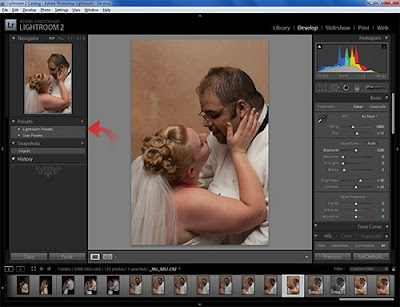

You should now see a folder entitled Lightroom Presets, which are the presets included with Lightroom itself. Beneath it is a folder entitled User Presets, bring your cursor next to it and right-click. Up pops the contextual menu with the options of “New Folder” and “Import”.
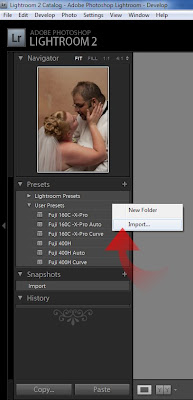

Click on “Import…” Once the dialog box opens, point the explorer to the desktop and open your folder you made earlier. Inside, highlight the .lrtemplate file you wish to import.
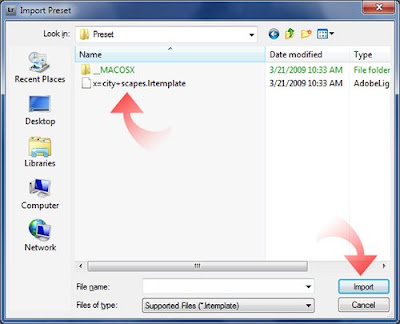

Then click “Import” and your new preset will be installed in the User Presets folder.
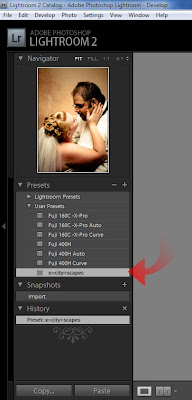

Now your preset is installed and ready for use. However you will rapidly make your User Presets folder a catastrophic mess. So you need to organize a bit. Let's go ahaead and make a new folder.

To make a new folder, right click again by the User Presets folder and choose “New Folder”.
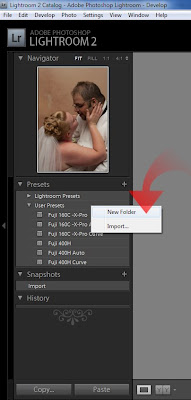

Name it whatever you choose.
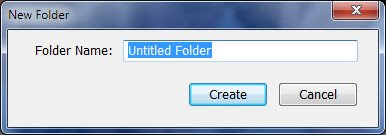

This will create the new folder in the presets menu.
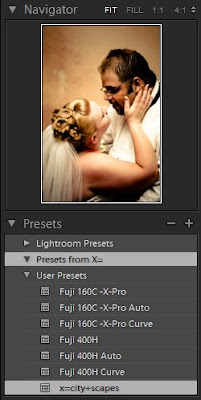

You can then drag the imported preset to the new folder or right-click next to it and import another preset into the new folder.
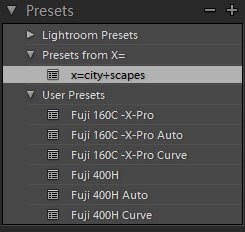
Pay attention to how you organize your presets in Lightroom, as they are a pain to sort after you have amassed a large amount. This is since Adobe only allows 1 level of folders in the presets menu. Hopefully in future releases Adobe may endow us with nested folders, and if they do it will drastically improve organization of presets.

Installing presets in Adobe Camera Raw nowhere near as elegant or user friendly, however it is quick and effective. In fact, to install the presets, you do not even have to open Photoshop, let alone ACR. To install presets into ACR, it is easiest to do it via your operating system. So open up Finder in Mac or Explorer in Windows, and point it to the following path (I believe Vista should be the same as Windows 7, but I am not sure. Vista users try it both ways):

Macintosh: /Users/UserName/Library/Application Support/Adobe/CameraRawFolder/Settings

Windows: C:\Documents and Settings\UserName\Application Data\Adobe\CameraRaw\Settings

Windows 7: C:\Users\UserName\AppData\Roaming\Adobe\CameraRaw\Settings

Please insert your user name for your system into the respective path where you see UserName. If your system is installed normally, this path will place you right into ACR’s preset folder. Here is a screen from my system:
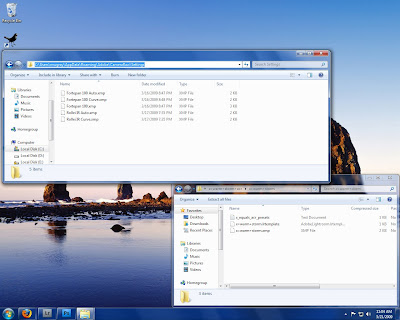

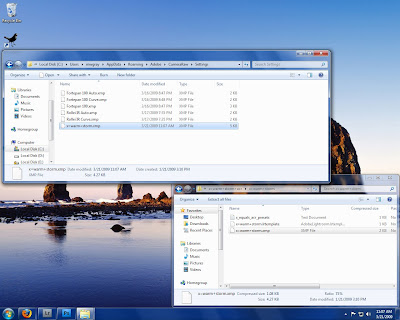
Now all you have to do is copy the .xmp presets for ACR right into this folder.

Close the folder and start Photoshop. Open a RAW file to bring up ACR.
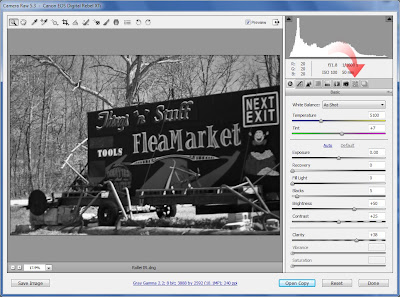

Once ACR opens, click on the presets tab.
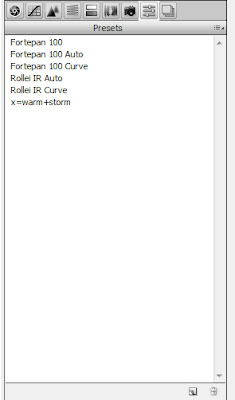


Almost magically your presets are ready to go, no other work needed. I strongly recommend only keeping presets you frequently use installed in ACR, as there is no method by which to sort them.

This is not to say that this is the only way to install presets in either program, but they are the most straight-forward in my opinion. Likely most all of you already know how to do this, but I felt that I should cover it anyways. Now onto a topic some people I know are not aware of… how to see what a preset does without loading it into Lightroom, or “Reading” a preset.

To read a preset, simply open the .lrtemplate file in any text editor. In Windows, you can just open Notepad and drag the .lrtemplate onto the empty Notepad window. This will open the preset in plain text. Although it can appear to be intimidating at first, take some time and look it over. You will start to see correlations between the text and the sliders in Lightroom. (Click the image below to view larger):
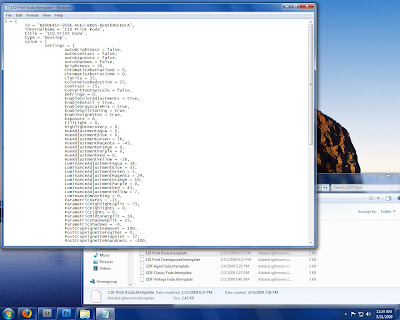

If you look at a presets text dump, I am sure you will start to see the correlations from the text file to Lightroom. A preset automatically configures your Develop Module tools for you, that is all they do. By looking at the text dump of any preset, you can see exactly what it will manipulate in Lightroom before you use it allowing you to know what to expect. It just takes a little time to get used to a tools internal name in the preset compared to the label on the slider in Lightroom. With a few reads and comparisons to the Develop Module you will get a quick understanding. You may not look at a preset’s text dump often or at all, but when you are away from your Lightroom computer, like at work, taking a peek inside a preset can tell you a lot, especially when you get familiar with Lightroom.

Also, it is possible to convert Lightroom presets to ACR. I have a tutorial up on X-Equals that explains the method to accomplishing that. Jump on over. Also, the presets I installed during this process were from Brandon's excellent collection of presets that can also be found on the X-Equals blog, click to be transported to his list of great presets. Don't forget to check out my article on sharpening in Lightroom over there too!

Hopefully this might help someone. If not, I just wasted a lot of my time writing, well not too much time. But again, I felt I needed to cover these tasks if I am to move firther into discussing presets in Lightroom and ACR.

Back again soon,

Michael

20090319

Tutorial: Presets, In Depth – Introduction


Right off the bat, I would like to apologize for the following posts. Many of you will already know everything I am going to get into with this article (and the next part in the series). I have always assumed that if someone found my blog and presets that they already knew quite a bit about presets; what they actually are, how to make them, change them and use them to their fullest extent. However, I have received many questions from people who have just gotten into Lightroom who are not entirely clear on what presets are. Even though many people, more talented than I, have covered this topic, I felt maybe I should devote some time to the subject. Please bear with me if you know all this already (anyways it more content and more practice writing).

So, for everyone still with me, let us dig on in. Lightroom and Adobe Camera Raw are both amazing, powerful tools that allow you to manipulate, interpret and create images. When using RAW files, the tools provided to you in the Develop Module allow a level of control over your images that is almost insane. The Develop Module offers you over 60 sliders to enhance your image, each affecting the image in different ways. That is not even counting the local adjustment tools or the tone curve! The sheer amount of tools provided and the power of each one allow you to interpret the RAW data provided by your camera in amazing ways, and can be a bit overwhelming.

The manners in which all of these tools are configured make your “recipe” for your image. When working with the sliders, it can take quite some time to achieve the effects you desire. However if you have to adjust every image in your shoot, making them look similar, it can become quite tedious. You have the option to copy and paste these settings from image to image, which may work fine for a single project. However you may find yourself referring back to that same “recipe” time and time again. Having to go to that original image each time and copy its settings would become quite the burden.

To remedy this situation, Adobe endowed both Lightroom and Adobe Camera Raw with a system to save these image “recipes” and to apply them to any image in just one click. This system is called Presets and the act of making them has been coined “presetting”. Countless individuals have made it a personal hobby to create these presets and share them with the world; others have set out to make finely-tuned presets that they offer for sale. These Presets allow others to apply the same processing that the creator made to their own images, greatly improving their workflow.

Presets can be used many ways. Some people simply choose an image; choose a preset, click and BAM! They have their image. While this works for a great many, and is great to discover what a preset does, it is usually not the best method to produce you final image. Presets should be used as a starting point. You choose the preset you wish to apply to your image, apply it and then proceed to further process your image. You may tweak the colors, white balance, tone curve and so forth. You should always sharpen and reduce noise yourself, when needed. That is not to say that your image won’t look great without further work; I have seen many 1-click images I found stunning, but you should always give your images the benefit of deeper study. You may decide that the image is perfect as soon as you click that preset, but more often than not, you will see where a little attention can make a good image great.

So over the coming days, not necessarily every day, I will continue this series. Now that you know what a Preset is, in general, we can move forward in discovering how you can use, modify and create your own presets. Once you get all this information, you will see what the true power of presets is, the ability to save you time and repetition. Hopefully this may lift some of the stigma presets carry, that they are lazy and counter-productive to creativity. Yes, you can do what any preset does without using a preset; it will just cost you time. When you have 100 photos to adjust, time tends to works against you.

So, a quick syllabus to let you see what will be forthcoming in this series:

Part 1: Installing and Reading Presets – I will run you through the installation process for both Lightroom and Adobe Camera Raw and then show you how to open you presets in a text editor, so you can see exactly what is adjusted when you use a preset.

Part 2: Creating Presets – A short instructional on the steps involved in creating a preset from a developed image. Covering the process of creating the preset and configuring it to adjust only what needs to be adjusted in an effort to produce presets that can be used together, also known as “stacking”.

Part 3: Customizing Presets – Sometimes, you have a preset you use frequently, but you often have to make some adjustments to the images afterwards. If you find yourself making the same alterations time and again, then you need to modify that preset to fit your needs. I will run through the steps required to alter an existing preset, tailoring it to your needs.

Part 4: Preset Tips – In the final chapter, I will delve further into some tips and techniques you can use to enhance your workflow with presets, be they your own creation or those of others. I will also discuss how to make “Preset Sets” that you can install and uninstall as needed, to keep your preset panel clean.

So stay tuned, I will release a few presets during the run of the series, so it won’t all be dry reading. I will be back tomorrow, don’t know if I will be bringing presets of words, but I will have something for you.

Until then,
Michael

PS: I have a new tutorial up over at X-Equals delving deeper into the sharpening tools in Lightroom. Part 1 is up today focusing on sharpening in the Develop Module. Hop over to X-Equals to check it out. Part 2 on export sharpening is forthcoming.

20090304

LR/ACR Preset: Fuji 160S

LR/ACR Preset: Fuji 160S

Another day, another Fuji-looking preset. Today I bring you Fuji 160S, the subdued color sibling to yesterday's Fuji 160C. While still quite vibrant, the color is more subtle than 160C, however it still can bring some pop to an image. This film was designer for use in portraiture, and thus it handles skin tones beautifully. A nice film, which I found I quite enjoyed, as I have a liking to the more subtle tones of portrait films.


As it is quite a busy day, I am going to leave it at that. Come back tomorrow, when I will have some honest-to-goodness blog writing done...or if all else fails another preset from the B&W vault.

Until then,

Michael

20090223

Monday Update: In Other Words, Nothing New Today...

Well, it is Monday, My busiest day of the week in the "real" world, so I am going to continue with my Monday Update reviews. Don't expect new contents often on Mondays, but something may sneak in from time to time.

Well, although it was difficult to do, I succeeded in getting a new post out every day again this week. However, I did not get any new articles out as I had hoped to...that just rolled into a new project. More on that when the time comes.

Still working on my new WordPress redesign for LifeInDigitalFilm. I am not going to migrate until I have everything ready to rock, so it should still be a while. When it happens you will know.

It was a good week for presets this past week, with a series of releases. The big focus on presets this week was on the Agfa RSX II family of slide film. I hope you all enjoyed it, as I was not planning on releasing them all at once, but lack of creativity preculded me from writing actual content, so they all got rolled out way too fast. A day by day breakdown....

Tuesday: Rollei Ortho
Wednesday: Agfa RSX 100
Thursday: Agfa RSX 200
Friday: Agfa RSX 50
Sunday: Maco Cube

Only article written was Saturday's rant about me and why I still shoot film. That is not counting shooting it to emulate it, but to explain why I have 50 rolls of file in the freezer waiting to be shot and another 15 waiting to be developed, while 3 rolls currently reside inside three different cameras. All being used whilst my DSLR rests in it's camera bag. To read on my retro-photo life click HERE.

This week I started a new mini-feature in my release posts... As I have encountered photoblogs using my presets, I have been featuring them on LifeInDigitalFilm. Sometimes it's good to see other people use my presets, actually it is always good, since I see my own photos too often and only can use my personal snap-shots to demo my presets...I don't like using client or project photos for this purpose. So here are the phot-blogs featured this past week on LIDF.

Wednesday: 365photosin2009 - Julie McLeod

A fun photoblog, depicteing Julie's progress through her 365 photo challenge. Every photo has to meet a theme that is listed on the blog, and every photo is a different theme. Quite a challenge and it is fun to see how she meets the themes with her photos. She had frequently used LIDF presets in her project and I ask you to take a look.

Thursday: Beau A.C. Harbin Photography Blog - Beau A.C. Harbin - Twitter: @bacharbin

Beau has a knock for creative composition and processing, and most of his images include a small snippet of text describing the image itself, so you can understand it in the context of how it was shot and processed. He has used LIDF presets occasionally on his images, most recently on a stunning HDR image of a bridge over the Chittenango Falls. His images will take you somewhere, if only for a moment.

Friday: Phototerium & The Photog Formula - Nate Lawson - Twitter: @nate_lawson

Phototerium is simply an amazing presentation. It is the home to Nate Lawson's 365 photo project, and he is putting up some simply stunning images. And as if that was not enough, he has frequently been posting the outtakes and seconds to his other blog, The Photog Formula. He has been on a kick of late using alot of LIDF presets in his work...Hop over, have a look, get some inspiration for finding the art in an everyday moment.

Saturday: profiPhotos - Markus Griebling - Twitter: @profiphotos

While not a photoblog in the same sense of the previous three, Markus' profiPhotos is an excellent resource for Lightroom tips. He recently posted a video on creating High Dynamic Range (HDR) images in Lightroom via HDRSoft's Photomatix Pro, check it out if HDR is an interest of yours or may someday be.

Markus is also a fellow Admin over at the Presetting Lightroom group on Flickr. Both of us want to invite you to join in on the conversation and to join in on the current photo contest. Less than a week to enter a phot for a chance to win HDRSoft's Photomatix Pro or a copy of my Cold Storage Collection. Join in the contest HERE.

Bonus Blog: x-equals blog - Brandon Oelling - Twitter: @xequals

Finally, even though I did not make mention of this site in the past week, please hop over to the X-Equals blog, in fact you should make this a frequent stop. Brandon brings you some of the best tip, trick and presets for Lightroom and also features alot of information on workflow, file-maintenance and often does in-depth features on some great photographers.

Recently Brandon put the spotlight on Tom Hoops, who is a great portrait photographer. The article is an interesting and informative read, giving insight into the mind of a great photographer.

In all Brandon's site is a great resource for Lightroom users and photographers in general. Take some time and visit his site. You might even find a few articles n me in his archives.

Well that is all for today, a rather quick post, given it's length. That's what recaps are good for, making you look prolific whilst not having to produce any new content. Come back tomorrow for a new color preset.

Until then,

Michael

20090208

LR/ACR Preset: Rollei Retro


LR/ACR Preset: Rollei Retro, originally uploaded by GrayImaging.

Finally I am making with a new film emulation preset. I hope everyone enjoyed the style preset I released a few days ago, but now back on to the meat and potatoes.

This fine Sunday morning I bring to you LIDF's interpretation of Rollei Retro. Apparently, when this film was introduced, it was relabeled Agfa APX. However, when I developed this roll, the frame border stated MACO as the manufacturer. I don't know for sure what the real truth is behind the origin of this film, but I do notice a slight difference in color response. That may just be the effects of age and a different development process (the Agfa APX preset I made was developed at a local; shop, most likely in d-76; I developed the roll of Rollei Retro at home with 1:3 Rodinal for 15 min @ 24 C).


I hope that this and my other presets find a home in your workflow, be it for fun or professional work. I enjoy making them. If you enjoy using them, as much as I loathe to ask, would you please consider buying my Cold Storage Archive. It can be ordered in the right hand corner of the blog or you can click HERE for more information. Help me keep providing these tools to you. [I will keep begging until I have my hosting paid for, then I will lay off].

Anyways, everyone have a great day/night and hope your coming work week is good to you.

Until next time,
Michael

20090125

LIDF Cold Storage Collection - 46 Film simulations - 12 Exclusive - $9.99

For a while now LifeInDigitalFilm has been the place to get Lightroom presets to emulate film. Recently I also added Adobe Camera Raw presets to the collection. Well as you have read over the past couple posts, I am not happy with the Blogger platform and I am ready to move on. I need to purchase hosting. I am not well-to-do, I live paycheck to paycheck, and I do my photography for money on the side. Hopefully one day it will be more, but for now I still have a day-job. I really cannot afford to outright buy hosting for my site, and pay for the expenses I incur developing these presets is getting immense. [Keep in mind, I have to track down old, sometimes rare film, shoot it and develop it to carry out a quality emulation] Something had to give, either the blog or my budget.

So I though of an alternative. I have bundled together every preset I have released on LifeInDigitalFilm since it's inception. From Kodak BW CN up to Ilford SFX, every release is there in both LR and ACR format. The only exceptions are my original B&W, print, and slide film collections, which were designed back in the summer before I developed my current procedure by which I develop presets.

I am calling this Set LifeInDigitalFilm: Cold Storage Preset Collection Vol. 1

The set is available for $9.99 for a direct download of the zip file containing all 34 film emulating presets I have release so far. So why pay for free stuff? First, think of it as a donation, no different than giving some money to your local public broadcasting station to ensure their excellent programming, a donation that gets you a DVD or maybe some tickets to an opera. Well for your donation you get every film preset on my site in one download. Second, do you really think I would ask for ten bucks just to give you what you can get for free? Hell no! I have created 12 new LR/ACR presets that are exclusive to the Cold Storage collection and only available to those willing to give ten bucks to help me offset the cost of this crazy endeavor of mine.

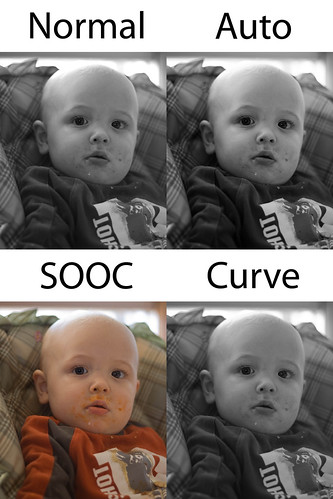
So a total of 46 film stocks emulated (actually 44, Polaroid 669 had 3 different presets), and each film stock has 3 presets; regular, auto and curve. That comes out to 138 presets for either Lightroom or ACR; they are both in the download!

Please consider supporting the site, I am not doing this to make spending money, I'm doing this to prevent me from choosing this blog or my dinner. Money is too tight for me to carry this on my own, and with your help we can keep it going.

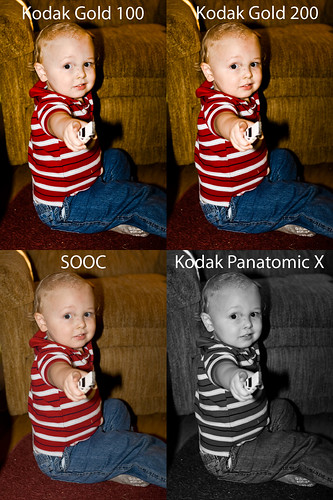
Is this site worth $10 dollars to you? Does $10 sound better than $199.00 or $299.00 USD for some film emulating Photoshop plug-in? The plug-ins might do a better job at it than my presets do, I don't think so, but they might. If my free presets let you enjoy film emulation with out doubling down for expensive plug-ins, is it worth it to pay $9.99 for Cold Storage Collection? Or even worth tossing me a $5.00 donation? If you have enjoyed my work, please consider purchasing the Cold Storage collection.. it is the only way to get the following emulations.

FUJI NEOPAN 100 ACROS


FUJI PROVIA 100F - Cross Processed


FUJI VELVIA 100


FUJI VELVIA 100F


FUJI VELVIA 50


KODAK EKTACHROME 100VS - Cross Proccesed


Kodak Gold 200 - Cross Processed


Kodak Panatomic X - Expired in 1977


Kodak Panatomic X - Expired in 1986


Kodak Portra 160 NC


Kodak Portra 160 VC


Kodak Portra 160 VC - Bleach Bypass


And so you know what it look like before conversion SOOC


Hopefully the samples have enticed you, if so, you can find the order buttons on the upper right hand side of the page. Click add to cart, then click on the cart to order.

Or do it here.

Purchase Cold Storage Presets Vol.1:Add to Cart

Click on Cart to Complete:
View Cart


Thank you for your support,
Michael W. Gray

20090111

LR/ACR Preset: Agfa Scala


LR Preset Agfa Scala, originally uploaded by GrayImaging.

[Adobe Camera RAW preset added 01132009]

Today is Agfa Scala Slide Film's turn for my attempt at emulation. A unique film, with many similarities to it's print counterpart, APX. But instead of primarily being used for negatives, this film was marketed for use as a slide film (although you could develop it either was, as with most B&W films).

Get it HERE.

Hopefully later today or tomorrow I hope to have a post up about getting better results with these presets. I am working on it now. I have gotten a lot of feedback back about people not getting desired results, only to find out that they were simply clicking the preset and calling it done. It might work that way, but not always, you still have to do a bit more post to nail a films look. Each photo is different, and needs a slightly different approach, my presets just give you a start on the path.

If you like how they look straight-up, great! A lot of people seem to, but other really think that these will nail a film's look 100% with one click. Not even Alien Skin Exposure 2 or Nik Silver Efex Pro can truly duplicate the look of a film. You still have to follow them up in Photoshop to get a good simulation.

If you are die hard about making your digital images look exactly like film, with little to no extra post processing, shoot film. If you want to make your shots look like film, and are willing to finesse Lightroom, then I will have some tips up later for you. My presets get you started, but they will never make it look perfect. Although I still feel the 1-click results are still good, and still close. Just not a 100% copy of the film.

Hopefully will get it out later today or tomorrow.


Michael


PS: If you have any specific questions about how to use these presets, email me - michael@lifeindigitalfilm.com , I will answer as soon as possible.

20081221

LR/ACR Preset: Ilford HP5+


LR Preset Ilford HP5+, originally uploaded by GrayImaging.

[Adobe Camera RAW preset added 01132009]

Well the weekend is over, got to get up and work 3 days before vacation starts. Yay! So I finally found time for another post, and tonights menu consists of Ilford HP5+.

HP5+ is Ilford's answer to Kodak Tri-X. A very versatile film with plenty of exposure latitude.

Get it HERE.

Wish I had more to say, but I have only shot it once, and it was for developing this preset. I think I will be sticking to Tri-X, but there is nothing wrong with this film, and I would probably prefer it for formal portraiture.

If you like Ilford film, check back in. I have quite a few ready to release in the coming days.

Until next time,
Micahel

20081216

LR/ACR Preset: Fuji Velvia


LR Preset: Fuji Velvia, originally uploaded by GrayImaging.

[Adobe Camera RAW preset added 01132009]

Tonight is a night for vibrant colors. In a departure from my usual black and white far, I am presenting the next in my line of color film presets. Tonight I present to the world my Fuji Velvia Preset.

Velvia really pushes color saturation, and is great for anything, except skin tones. You can tell the difference in the sample above, with my original raw image on the left, converted to jpeg. On the right is the same file, with no other processing than my Velvia Preset.

There is more information on the film in the zipfile readme, but I figure if you know what Velvia is, you most likely don't need me to retype it here.

Anyways, I'm fighting a pretty bad cold, and tomorrow is my birthday, so I am feeling petty miserable. I figured letting this out would make me feel a little better.

Grab it HERE.

Until next time,
Michael

And to those who found this release hidden in yesterday's post; nothing has changed except the readme and the name of the zipfile.

20081215

LR/ACR Preset: Agfa APX


LR Preset: Agfa APX, originally uploaded by GrayImaging.

[Adobe Camera RAW presets added 01132009]

Well, time for another preset. This time it is Agfa APX, another "dead" film that I could not get a real roll for my preset development. So this is a best guess emulation, based off the published response curves and physical prints.

I don't have much to say about the film, as I have never used it, and there is not much information on it to accumulate a short report on it. I hope you enjoy it anyways.

Get it HERE.

As recurrent visitors can tell, I have been tweaking the blog itself quite a bit recently. Trying to find a good, black background theme to use, that is easy to read. Also will soon be adding a downloads section, where you can go to see samples, descriptions and download for all the presets.

Hopefully I will have this project done around new years, until then please forgive the random changes.

Until next time,
Michael

Thinking about it, and should I just use webpages for the film preset download pages, or should I use a wiki for the pages, so others can contribute samples of the origianl film and presetted photos, and help complete better profiles on the film stocks themselves. Email me or drop a comment and let me know which method seems better.

20081211

LR Preset Collection: Kodak B&W Vol. 1

So once again I have had a lapse in new posts. Unfortunately it always gets that way this time of year. Upside, I get almost 2 weeks vacation after Christmas, so I will have more time for my fledgling photography business and more time to give to my blog. I refuse to promise a regular release schedule until I can get past Christmas.

However, although I have no new preset to release tonight, I am officially releasing my Kodak preset you all have been using. I have grouped up 9 of the Kodak presets from here, and 3 Presets from my 1st B&W set. I added my "curve" preset to the 3 re-released presets.

Other than the re-releases, If you have gotten all my downloads here so far then you have all this. But if you are just finding the site now, all my Kodak B&W films I have release to date are in this set.

As I go along, Ilford will get a set like this, along with Fuji, Rollei/Maco, and then a set of other film stocks. But for now Kodak is the set I have most complete so here it is:

Included Film Emulations (3 presets per film stock)

MikeyG!s Kodak BW CN Preset
MikeyG!s Kodak Copy Film Preset
MikeyG!s Kodak HIE Preset
MikeyG!s Kodak Panatomic X Preset
MikeyG!s Kodak Plus-X Preset
MikeyG!s Kodak Portra BW Preset
MikeyG!s Kodak T-Max Preset
MikeyG!s Kodak Technical Pan Preset
MikeyG!s Kodak Tri-X Preset
MikeyG!s Kodak T-Max 100 Preset *
MikeyG!s Kodak T-Max 400 Preset *
MikeyG!s Kodak Tri-X 400 Preset *

*- these are the re-released preset. All others are here on this blog and have sample pictures posted.

Get the file HERE

The collection has also been released by Pierre at PresetsHeaven. I ask you all to check out his site daily, as he produces some great presets and also distributes presets created by other talented individuals.

PS: (12/13/2008; 0703 CDT) I just discovered that I had goofed in my Panatomic X release, I accidentally placed my Plus-X Auto and Curve presets in with the PanX standard preset. This effects both the original PanX release and the Kodak Collection. I will fix the issue later today when I get back home. Sorry for the screw-up.

(12/13/2008; 1103 CDT) The corrected collection zip file is HERE. This link is hosted by LIDF, however please get it from PresetsHeaven and support Pierre.

Until Next Time,

Michael

20081128

LR/ACR Preset: Ilford Delta


LR Preset: Ilford Delta, originally uploaded by GrayImaging.

[Adobe Camera RAW presets added 01132009]

Wow, another week passes and I am just now releasing a new preset. It has been a hectic week, but I have a weeks worth of presets ready to roll now, so hopefully it will get better.
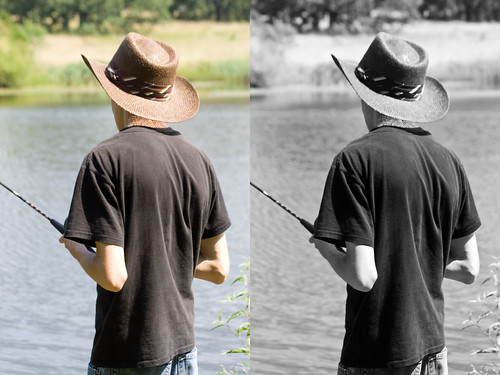
Tonight I present to you my interpretation of Ilford's Delta film. It is very similar to T-max and Fuji Neopan Acros. It is an excellent film in my opinion, better than T-max, but not quite as beautiful as Fuji's. But that is my opinion. Very good for images with high contrast.

I hope you all enjoy this preset and that you are all doing well.

Oh, get it HERE.

Until next time,
Michael

20081123

LR/ACR Presets: Kodak Panatomic X, Kodak Gold 100 and 200

[Adobe Camera RAW presets added 01132009]

Sorry for the extended drought of my film emulating presets. I am back after a fairly long stretch of "real" work, and I have presets!

Tonight I release my interpretation of Kodak Panatomic X B&W film. It has been discontinued for quite some time, and I was only able to get a hold of a few samples, and no real film for me to shoot. That is to be expected from a film that was discontinued almost 30 years ago. I feel the emulation is as close as I can get with Lightroom as it stands. There is some nuance with the smoothness of the tone that I noticed in the original film that is impossible to even correctly approximate. I tried for the past two weeks to get the tone nailed, but I could not do it. I feel the overall look is right, and a perfectly exposed image will convert wonderfully. If Lightroom has to work to correct exposure expect the tone to not be so smooth. I can't explain why it works like this, but it does.

While the Panatomic preset is not perfect, I am still proud of it and hope you all enjoy it. You can get it HERE.

Also, as a bonus for you patience, I am also releasing my interpretation of Kodak Gold 100 and 200. I am not a big fan of Gold film, but it is one of the most commonly shot films in existence. Surely someone likes the look. There is an individual release for both 100 ISO and 200 ISO, this is due to a slight difference in the tone curve that is evident in brightly lit photographs. Not much else to say on these, which is why they are "bonus" presets.

Kodak Gold 100 is HERE.
Kodak Gold 200 is HERE.

Thank you to all who visit my site, and my apologies for the extended delay in releases.

Until Next Time,
Michael

20081113

LR/ACR Preset: Kodak HIE


LR Preset: Kodak HIE, originally uploaded by GrayImaging.

[Adobe Camera RAW presets added 01132009]

Sorry for the missed day all...I had to take it off, it was my first day in a very long time in which I developed my own film. Processed a roll of my favorite, Fuji Neopan 100 Acros. But anyways, that was the cause of the delay...photography.

But today I preset to you my humble interpretation of Kodak HIE infrared film. This particular film stock is no longer produced (production ceased in 2007) and the last rolls of stock are selling at quite high prices on eBay. I'm too cheap to pay $40 usd on a roll of film, no matter how spectacular, so this was as close as I could get with out real negatives in my hand to compare to.

Anyways, many people were up in arms of the cancellation of this film, so I guess it was special to many people out there. So have at it and hopefully it may get near-IR results.

Get it HERE.

I will recommend that you adjust the red and magenta channels give or take 20 clicks on the slider to find the best look for the image. I kept the reds conservative to get better overall appearance, but many photos need those channels kicked to the right a notch to get better IR effect.

Well until next time,

Michael

20081111

LR/ACR Preset: Kodak T-Max


LR Preset: Kodak T-Max, originally uploaded by GrayImaging.

[Adobe Camera RAW presets added 01132009]

So, my internet connection is back up. It was down all day and I thought I wasn't going to get tonight's release done. Trying to release 5-6 per week, and I have plenty of emulsions to emulate, so they should keep coming for a while. But anyways...

Tonight I bring to the world my rendition of Kodak T-Max. In the interest of honesty, I am not a fan of T-Max. At least not with my experience with the film. I always found it to be lacking in tone and character. But there is a whole world full of people who know more about photography than I who love this film. So even though not a film I love I emulated it anyways, I have shot enough to know somewhat what I was looking for, and hopefully this preset is sufficient.

Get it HERE.

This almost draws my Kodak B&W collection to a close, only have HIE infrared to go (which obviously cannot be emulated without a real IR converted camera, which I don't have access to.) I hope you have found these presets useful.

Also, when you post pictures processed with my presets onto Flickr, if you remember, please tag the photo "lifeindigitalfilm" and with the preset name. I would love to see your work using my presets. By no means do you have to, but I would appreciate it. And to those of you who already have, thank you.

Once again, leave feedback on the presets after you use them. Tell me what you think, what I should improve or do differently. I truly want these presets to be a viable choice for photographer who want the film look without having to get Exposure 2 or DxO Film Pack. The more feedback I get, the more I have to work from when I am ready to revise the presets.

I plan on also re-releasing all my previous presets as ACR settings. So far I am getting good results with the emulations processed with ACR. It's pretty straight-forward, just copy all the LR setting over to ACR, but it is alot of work. So, I will only release ACR presets after I complete each LR pack, not after each preset.

Until Next Time,
Michael W. Gray

20081110

LR/ACR Preset: Kodak Plus-X


Sample - Kodak Plus-X, originally uploaded by GrayImaging.


Sorry for the time away, but I have been feeling a little under the weather. Good news is that I have some more presets ready, which I will be releasing over the next couple days.

Today I present my interpretation of Kodak Plus-X black and white film. Plus-X is another classic film, it received a revamp back in the 2002, merging the Plus-X family into one emulsion, PX125 (which is still available today). The grain is finer than that of Tri-X and tones are smoother and more subdued than T-max.

You can get it HERE.

When using the preset, any preset by me (or anyone else for that matter) remember to play around with those sliders some. As long as you don't touch the color mixer on my presets you should retain the general tone and/or color of the film. Throw in vignettes, sharpen the hell out of the images, drop the contrast, whatever makes it look right to you.

Try the different versions of each preset. Take the standard preset and tweak it to your needs, when you find a look you like, right click on the preset and update it with your new settings. Work the picture up in color and toss the curve preset on it, it will leave all you basic tone adjustments alone. Or let Lightroom do the work and hit the Auto preset. Experiment. If you have any question regarding the use of my presets just ask in the comments under the applicable preset. I will give you an answer as soon as I get a chance.

Well until next time, my friends

Michael W. Gray

PS make sure you check out the sites to the right, such as PresetsHeaven & TWIP.

20081107

LR/ACR Preset: Kodak Tri-X


LR Preset: Kodak Tri-X, originally uploaded by GrayImaging.

[Adobe Camera RAW presets added 01132009]

So I have already released this film emulation once in MikeyG!s B&W Film Presets Vol 1. However after getting out my old negs and prints I decided that I had to have been a bit off. After studying the actual film, simulation programs and the tech papers I feel that this is a more accurate representation of the film. This version alters all colors on the grayscale mixer, not just primaries. To me it seems that by working the entire spectrum I am getting much smoother tones, more reminiscent of real Tri-X.

Grab it HERE.

This is a tricky preset to release, especially since this is the de facto king of B&W to many photographers out there. I pray that the world can accept this preset in all its flaws. I may get close, maybe even closer in the future, but I can never emulate any film 100%. The only way to nail the Tri-X look or any other film look is to shoot the film.

Which, although soapboxing here, brings me to a thought I need to bring up. Since I have started my film emulation presets I have gotten alot of good feedback, but I need to address 2 questions/comments that I have gotten in some volume:

1) Why bother? (film is dead)

I bother because film is the heart and soul of photography. There can be a certain sterility to digital images that was rarely seen on good old analog film. That warmth that film provided in tone, contrast and density made photography. If we can put some of that feeling back into our digital work, especially when its needed, it can only improve an image.

2) Why bother? (if you want it to look like film, shoot film)

I do shoot film. Quite a bit. But I find myself with a digital in hand more often than not. I grew up on film, and will shoot film as long as I can (just got some Ilford 400 hp5+ for the weekend). But for clients photos I almost always use digital, unless they request film. Film is my look, and I want it in my work. It may not be 100% accurate, but 90% approximation of the film I want is better than 100% of what I don't want. Quite frankly film is expensive, and I couldn't afford to shoot a wedding on film and make money. I can't get 10 pictures each of 30 poses in an hour with film, and turn a profit on it. Digital + Simulation gives me what I need with little extra overhead, aside from the work developing my presets or money spent on Exposure 2.

From the response in general I have received, from the download numbers I have seen, people like the film presets. I will keep on making and revising these to get ever closer to the impossible 100%. People are using my presets and enjoying my presets. Most importantly I am using my presets, they are making my workflow easier, and others can benefit from my efforts.

Sorry for the rant,
Michael

20081106

LR/ACR Preset: Kodak Copy Film


Kodak Copy Film Sample, originally uploaded by GrayImaging.

[Adobe Camera RAW presets added 01132009]

So after a bit of a battle with a cold, I'm back with my newest release. Today I bring an emulation of Kodak Copy Film. This was a film design primarily to reproduce continuous tone images, however was often used to make original images themselves.

I never got to personally play with this film, however the samples I studied in the emulation process impressed me. So I preset it to you HERE.

In the sample above, look closely in the image for the changes, they are very subtle. Maybe not the best image for a sample, but its already made, so I will leave it as it is. It is much more clear if you click on it and jump over to Flickr.

I hope you enjoy the preset. As always a readme text file is in the archive with more information on the film and my hints on how to tweak the preset for best results.

Also, unlike most of my other presets, this one does not adjust clarity. I felt being as it was a reproduction film that it would not be appropriate to induce clarity, so if the image looks soft, crank clarity up.

Until next time,
Michael W. Gray

PS: If you are on twitter and into photography please register yourself at the Twitterectory, a good resource for finding other in the same hobby/profession. If you already have, thanks...and follow me @mwgray!

20081104

19 Black & White and 9 Color Print Film Emulating Presets

[NOTE: The presets contained in the following archives are no longer supported. I have developed a new analysis and emulation process, which has supassed the methodology by which I developed these releases. Many of these film stocks have been re-emulated via my new technique and released on LIDF. Use these presets if you choose, just warning you that the newer ones are more accurate and usually better. -Michael]

Pierre over at PresetsHeaven just helped me out quite a bit. I got alot of video work to get done tonight for one of my clients, so I don't think I will have a new release ready today. Just a few moments ago I got a tweet from Pierre informing me he had posted one of my older preset packages today.

This is good for me, because then I am still coming through with more presets (just ones that were released on flickr groups previously), and I can get this other work done with out my daily update. Also its good for me because his site gets so much more exposure than my pittance of a blog, meaning my presets move out further into the wild.

Today Pierre released MikeyG!s Color Print Film Presets Vol 1. To get it click the link to the left and head over to his page. It offers you 9 different film styles (7 different films, with 3 different interpretations of Fuji Reala), each with a standard preset and an autotoning preset.

Also featured on his page a while back is MikeyG!s Black and White Film Presets Vol 1. It has 18 different B&W film stocks, each with a standard and autotone version.

I feel that I did a pretty good job on these, however I have learned so much about how to coax Lightroom in the two weeks since I got these packages done. Case in point the Reala presets that push the film...they don't look right. But I admit that, and I feel that I am better able to produce the desired effects now and will re-release every preset in these packs as I get time.

As always, let me know what you think of my work. If you are on twitter get me @mwgray or find me on flickr as grayimaging. You can also reach me at grayimaging
* -at- * gmail * -dot- * com.

Hosted by LIDF:
B&W Film Preset Vol 1
Print Film Preset Vol 1